Monday morning arrives, and a regular customer calls to ask why your shop shows as "permanently closed" on Google. You are standing right behind the counter. Someone "suggested" the edit three weeks ago through your Google Business Profile (GBP). Google accepted it automatically, and you never knew until the phone rang.
That exact scenario — a silent edit, delayed discovery, and a lost weekend of traffic — is what Google's May 2026 rollout aims to kill.
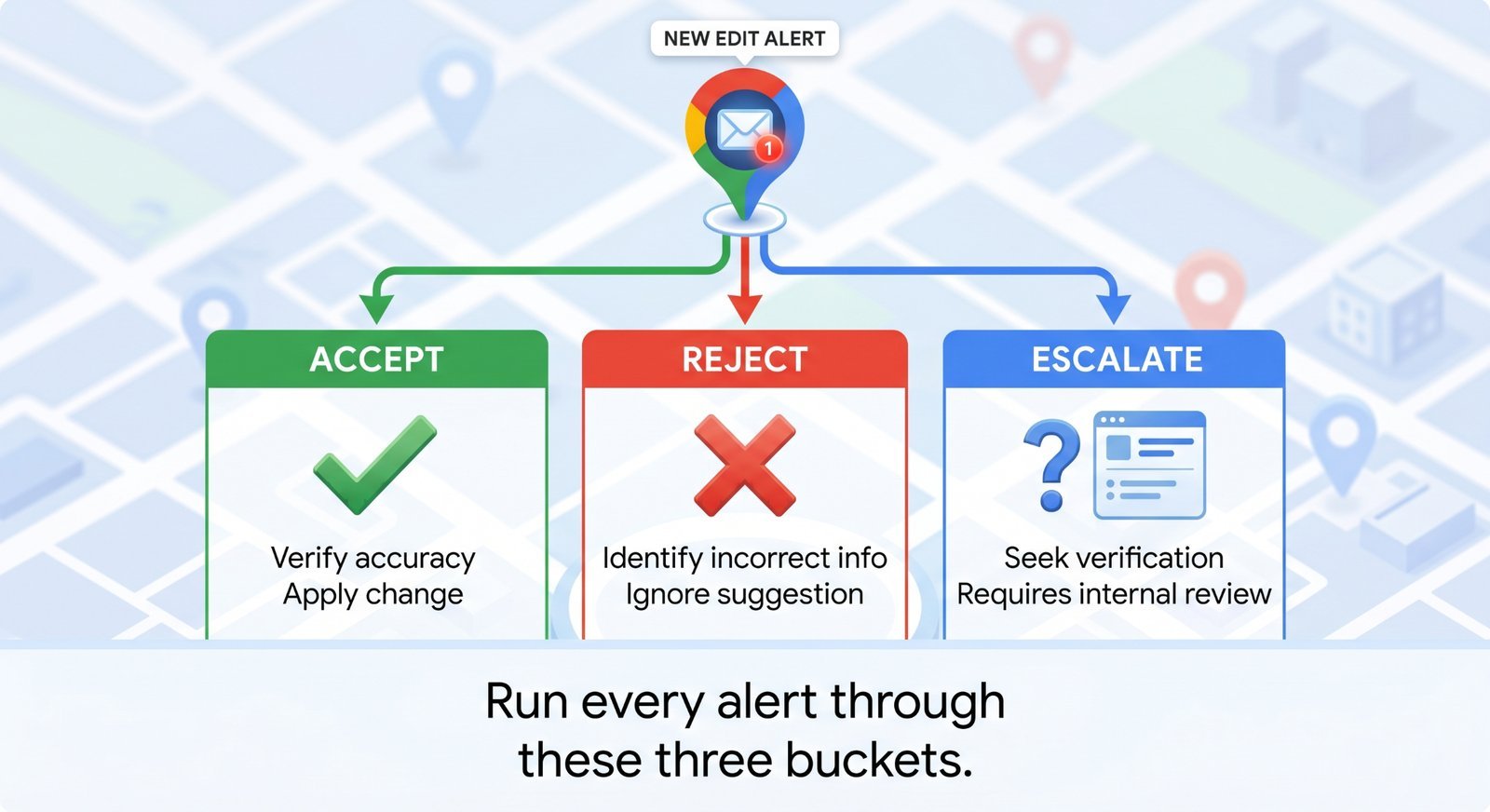
The fix is simple in concept: Google now emails verified owners before a user-suggested edit goes live. The hard part is managing those emails once they start landing in your inbox. If you treat every alert with a simple three-bucket framework — accept genuine fixes, reject sabotage, and escalate anything ambiguous — your profile will stay accurate in the Ask Maps era. If you ignore the inbox, you slip back into the old world where competitors and rogue users quietly rewrite your business details.
What changed in May 2026 (and why it matters more than it sounds)
In its May 2026 GBP newsletter, Google confirmed a major shift in how it handles listing data:
Google now sends "proactive email alerts so verified and active owners have a way to easily review user-suggested edits before they go live."
That single sentence flips the default workflow.
- The Old Way: A stranger suggests a change to your hours, address, name, or business category. Google's systems weigh the account's credibility. If the signal looks decent, the edit goes live immediately. You only find out when a customer complains or rankings drop.
- The New Way: Google holds the edit and asks you first.
This update matters immensely because of where local search is heading. Features like Ask Maps — the conversational AI interface where users type prompts like "Is anywhere open past 10 PM near me?" — rely entirely on live profile data. If a sabotage edit quietly shrinks your operating hours, the AI assistant tells users you are closed. There is no traditional search results page for the user to double-check, and no blue link to click. The wrong answer becomes the only answer. Stale or sabotaged data is now a direct revenue leak.
Most businesses stop at 2 GBP categories. Google allows 10. Read what they're missing.
Setting it up (verify in your own dashboard)
Do not assume the system is working perfectly for you out of the box. Rollout details vary by region and account type. Open your dashboard and confirm these three operational elements:
- Check Your Status: Make sure your Google account is listed as a Verified Owner, not just a manager. Alert eligibility is strictly tied to owner status. Managers will likely miss these emails entirely.
- Fix the Routing: Ensure the email address on file is actively monitored by a human. A generic corporate inbox receiving hundreds of automated messages a day is where important alerts go to die. Route these notifications to a destination that gets reviewed daily.
- Verify the Toggle: Open your GBP notification settings and look for the edit-alert toggle. Google tends to enable these by default during rollouts, but you should verify it visually. Because Google updates its interface frequently, look directly at your dashboard settings rather than relying on a fixed click path. For details on finding these controls, refer to the Google Help Centre page on GBP notification settings.
Agency Note
If you manage multiple client locations, route every alert to a central ticketing system or a shared team inbox. Do not let alerts sit in an individual account manager's personal inbox. A team member taking a week off should never result in a client's business hours getting quietly rewritten by a competitor.
The 3-bucket triage framework
To keep this system from eating up your schedule, run every incoming alert through a 60-second triage process using three distinct buckets.
Bucket 1 — Accept (genuine fixes)
These are corrections that you simply haven't gotten around to making yourself.
- A customer corrects a minor typo in your street name.
- A user updates your hours because you forgot to change them back after a holiday weekend.
- A regular adds an accurate attribute, like "wheelchair accessible" or "outdoor seating."
The Rule of Thumb: If the suggested change is entirely accurate and you would have made it yourself eventually, accept it and move on.
Bucket 2 — Reject (sabotage, spam, noise)
These are edits that directly threaten your search visibility or your revenue.
- "Permanently Closed" Status: The ultimate competitor sabotage tactic against active businesses.
- Narrowed Categories: Changing your primary category from "Italian Restaurant" to "Pizza Place" strips away your visibility for broader, high-volume searches.
- Reduced Hours: Edits that artificially shrink your operating window.
- Keyword Stuffing or Stripping: Users are trying to alter your business name. Google enforces strict name guidelines, and user-submitted edits here are highly prone to error.
The Rule of Thumb: If the edit costs you visibility or revenue, reject it immediately. Anyone with a signed-in Google account can submit an edit, not just official members of theLocal Guides program.
Bucket 3 — Escalate (ambiguous or repeat offenders)
Some edits require a closer look before you make a decision.
- Unfamiliar attributes that you don't actively track.
- Slight adjustments to hours that might stem from a customer's recent experience.
- Any change to your primary or secondary business categories.
Categories drive local keyword rankings more than almost any other profile element. Never accept a user-suggested category change without verification.
The Rule of Thumb: When dealing with core ranking fields or recurring submissions from the same user, reject the edit first, audit your actual data, and log a ticket through the official GBP support channel if you suspect coordinated spam.
How does this connect to the freshness signal in audits
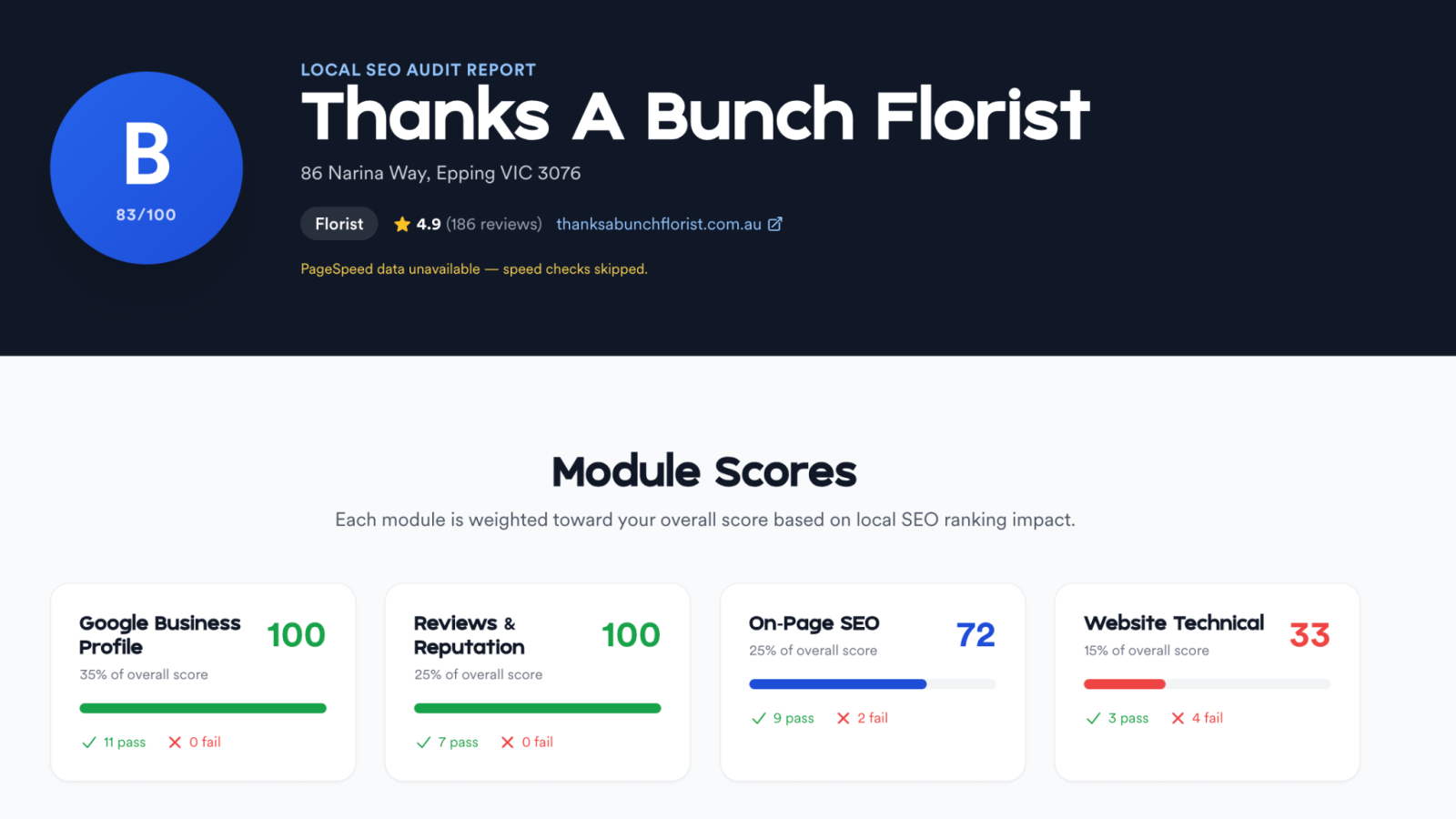
When listings show severe data degradation during a local SEO check, the root cause is almost always historical: a silent, user-suggested edit slipped through months ago, went unnoticed, and left the profile out of sync with the business's actual operations.
These new proactive alerts give you the leverage to stop that drift. Reviewing and acting on these notifications within 48 hours keeps your data signals clean and accurate. If you leave the emails unread, you simply move the old problem from your Google dashboard into your email inbox.
If you haven't reviewed your underlying location data recently, you canrun a free CheckLocalSEO audit. The scan takes less than a minute and highlights whether your profile is currently penalising you due to unverified user edits or outdated business information.
What to ignore
Maintaining a clean profile also requires knowing what to leave alone. Avoid these two common pitfalls:
- Phishing and Bait Emails: Security risks will rise as this feature gains traction. Scammers frequently spoof Google notification formats to steal login credentials. Genuine alerts come from verified Google domains and link directly to your main dashboard. Never click action links inside an unverified email. Instead, open a clean browser tab, go directly to your Google Business Profile dashboard, and check for pending notifications there. If the dashboard is clear, the email was a phishing attempt.
- Over-Editing out of Panic: The alert system is entirely reactive. Receiving a wave of user suggestions does not mean you need to start changing your core business information preemptively. Frequent, unnecessary updates do not improve your search performance. True data accuracy improves your profile; activity for its own sake does nothing.
Most businesses ignore GBP attributes. The customers searching for them don't. Here's why that matters.
The takeaway
Inaccurate profile data is a silent killer for local search visibility, but Google has finally provided an explicit alarm system. Use the three-bucket framework, route the notifications to a team member who reads them, and check your location health once a quarter to make sure your data matches reality. It is a simple, unglamorous maintenance routine — and that is exactly why it works.
To find out if your business profile is already suffering from an unreviewed change,run a free CheckLocalSEO audit today to verify your data accuracy.
Frequently Asked Questions
Q: I am not receiving any email alerts. Is my dashboard broken?
A: Check your access level first. You must be registered as an Owner, not a Manager. Next, confirm that notifications are enabled in your settings panel and that your registered email address is correct. Finally, keep in mind that Google rolls out these updates in waves across different regions.
Q: Can I still overturn an edit if it accidentally goes live?
A: Yes. You can change the information back manually through your dashboard at any time. Direct edits from a verified owner account overwrite community suggestions. Catching it via the email alert simply saves you the loss of visibility while the wrong data is live.
Q: Do these proactive alerts include new photos and customer reviews?
A: No. The May 2026 update specifically targets core business information fields (like your name, hours, address, and categories). User-uploaded photos and reviews use a separate moderation and notification channel.
Q: I manage dozens of locations. How do I avoid getting flooded with emails?
A: Set up automated inbox rules to route incoming alerts from the Google notification domains into a single project folder. Review the folder in regular weekly batches, but create urgent keyword flags for high-priority terms like "hours," "name," or "closed" so your team can reject malicious changes within the same business day.