Most Google Business Profiles are half finished. The owner claimed the listing, added a phone number and a couple of photos, and moved on. That profile still works. It just does not win.
The businesses that show up in the local pack are not lucky. They filled in the parts everyone else skipped. They kept the profile fresh. They earned Google reviews and answered them. None of it is hard. It is just a list of things done properly.
This guide is that list. Your Business Profile is the most visible piece of local marketing your company owns, and it is free. Work through it once and your Business Profile will be in better shape than most of your competitors. Come back to it each quarter and you will stay there.
There is no signup needed to start. If you want to see where you stand right now, run a free Google Business Profile audit and you will get your score in about 60 seconds. Then use this guide to fix what it flags.

What Google Business Profile optimization actually means
Optimization sounds technical. It is not. It means giving Google enough accurate, current information to confidently show your business to the right customer at the right moment, in Google Search and in Google Maps.
Google decides local rankings on three things. It says so itself.
Relevance
How well your profile matches what someone searched for. A complete profile gives Google more information to match against. A thin one gives it almost nothing.
Distance
How close you are to the searcher. You cannot move your shop. But you can make sure your address, service areas and map pin are exact, so Google measures the right distance.
Prominence
How well known your business is. This comes from reviews, links, mentions across the web and your offline reputation. It is the slowest factor to move and the one most owners ignore. Independent surveys of local SEO practitioners, such as Whitespark's Local Search Ranking Factors, consistently rank reviews and the Business Profile itself as the top drivers of local pack rankings.
You have direct control over relevance and a strong influence over prominence. That is most of the game, and it is the core of any local SEO strategy. The process below follows those three factors in order. The rest of this guide is the work, step by step.
What does an optimized Google Business Profile look like?
Before the steps, here is the finish line. An optimized profile earns more search visibility, more calls and more visits. It has:
- One specific primary category and every secondary category that is true
- The real business name, with no added keywords
- Name, address, phone number and contact details that match the website and every online directory
- A description written for customers that explains what you do and who you serve
- Accurate hours, including holiday hours
- Real photos and videos, added regularly
- Products, services and attributes filled in
- A steady flow of Google reviews, each one answered
- Fresh posts every week or two
- Performance reports checked every month
If your listing already has all of that, you are ahead of most of your local competitors. If not, start at the top.
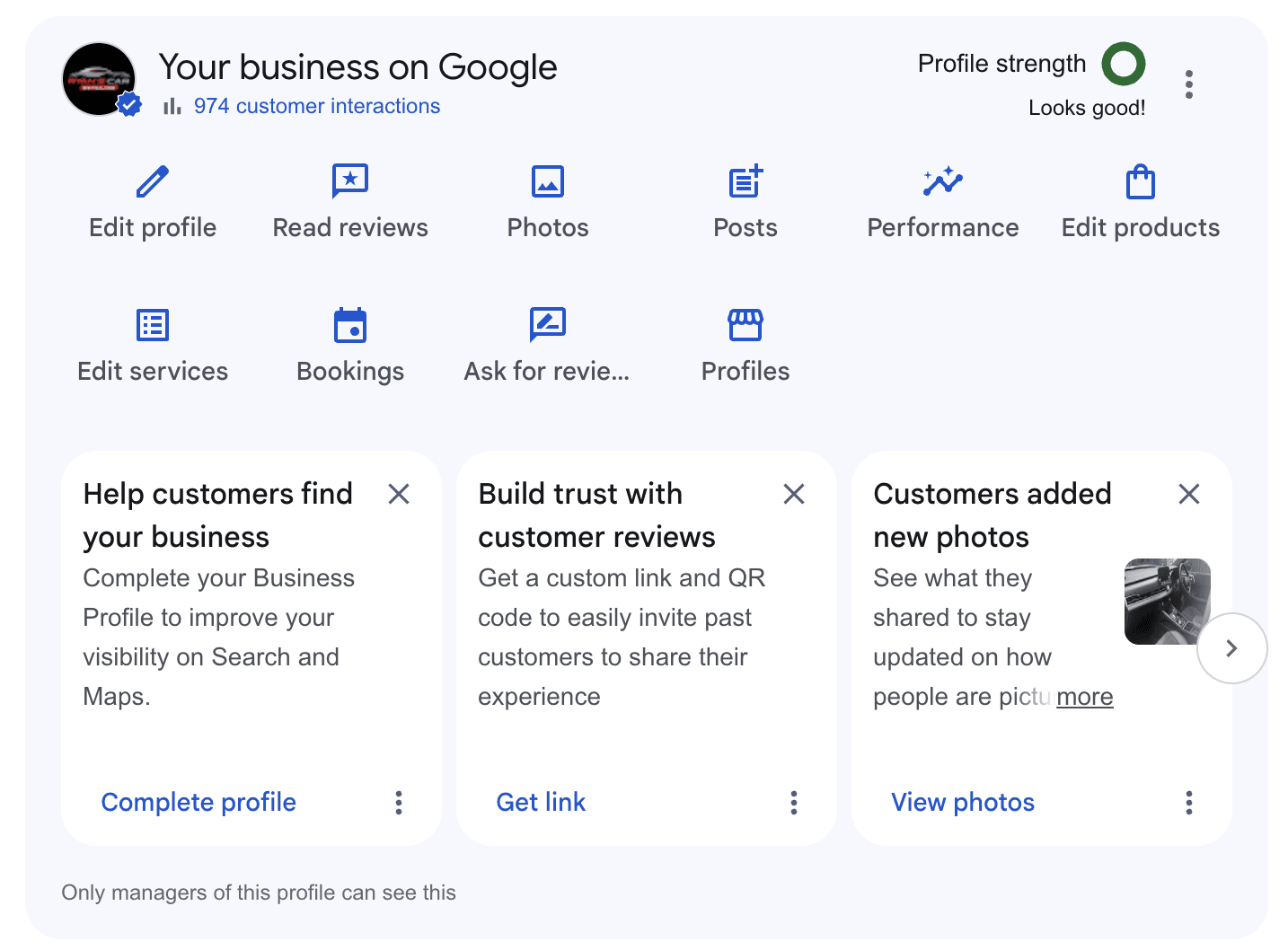
Before you start: claim, verify and clean up
Nothing in this guide works on a listing you do not control. Three quick checks first.
Claim or create your Business Profile
Search for your business name on Google. If a listing appears with an "Own this business?" link, claim it. If nothing appears, create a new Business Profile. Use a Google account the business owns, not an employee's personal account. Google's getting started guide covers the sign-in steps.
Verify your business
An unverified listing cannot be fully edited and rarely ranks well. Google offers several verification methods: video, phone, email, postcard or live video call, depending on the business type. Video verification is now the most common. Have your signage, your equipment and proof of the address ready before you start.
If you run a service-area business, this walkthrough shows what Google wants to see on the video:

Check for duplicate listings
Search Google Maps for your business name and your phone number. If two listings exist for the same location, Google splits your reviews and your ranking signals between them. Mark the duplicate as a duplicate inside the Business Profile manager, or request its removal through the Help Center.
Step 1: Pick the right categories
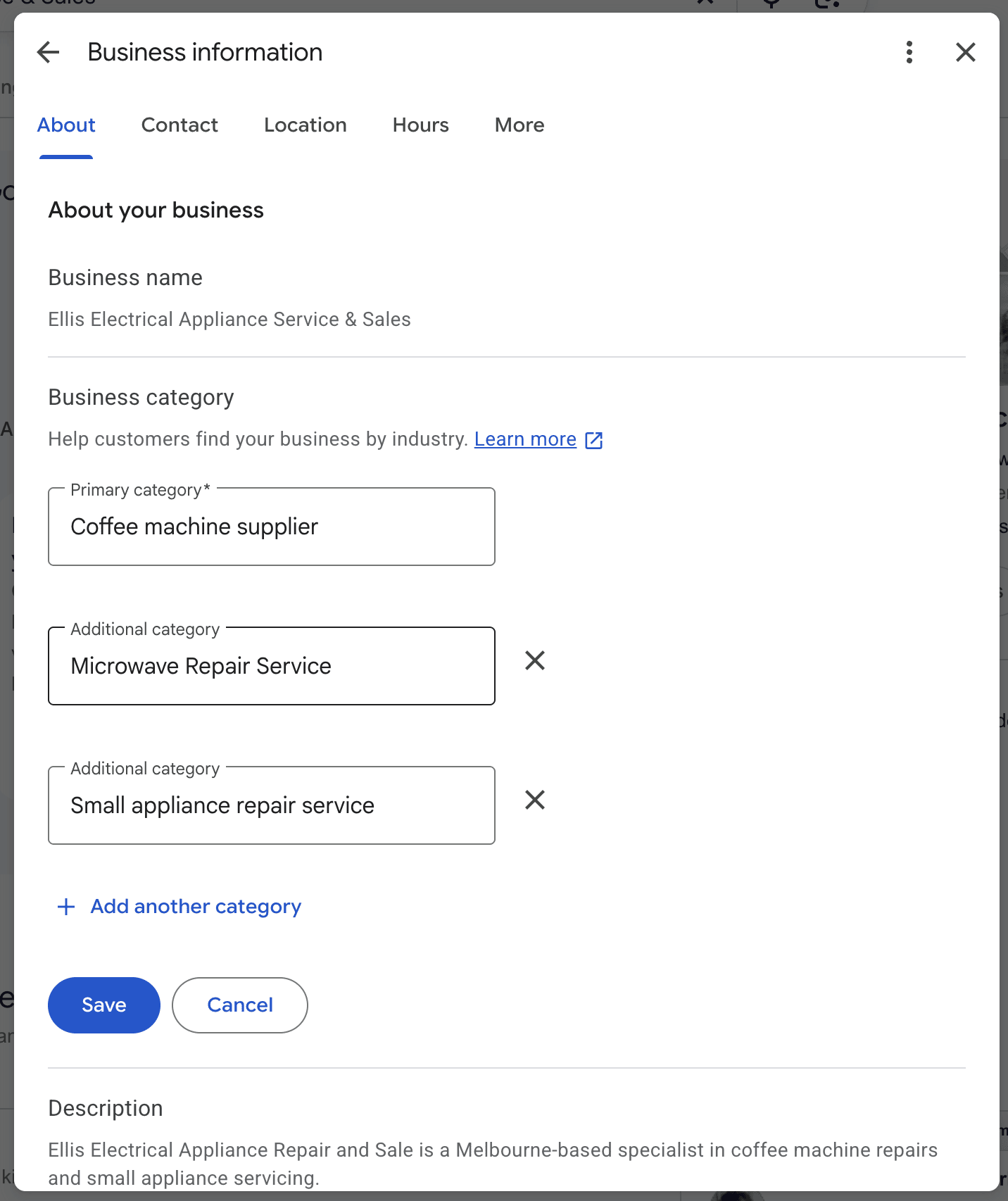
Categories are the single most powerful field on your listing. Google uses your primary category to decide which search results you are even eligible for. Get it wrong and nothing else you do matters.
Choose one specific primary category
Pick the most specific primary category that describes your core business. Not "Restaurant" if you are a "Sushi restaurant." Not "Lawyer" if you are a "Personal injury attorney." Specific wins.
A quick way to check: search your main service in Google Maps and look at the primary category your top three competitors use. If all three use the same one and you do not, you have found your problem.
Add every secondary category that is true
Then add secondary categories for everything else you genuinely do. Google lets you have up to ten. Most businesses use two. That gap is free visibility sitting on the table. If you also do catering, repairs or emergency callouts, there is probably a category for it.
One rule. Only add categories that are true. Stuffing irrelevant ones in to appear in more searches can get you filtered or suspended.
We broke down the ten-category opportunity in detail here: Google officially says you can have 10 GBP categories. Most businesses use 2.
Step 2: Get your name, NAP and description right
Use your real business name
Your business name on the listing must be your real business name. The one on your signage and your legal documents. Nothing more. Google's guidelines for representing your business are explicit about this.
Adding keywords to your name is tempting. "Joe's Plumbing" becomes "Joe's Plumbing | Emergency Plumber Near Me | 24/7." Do not do this. Google now uses Gemini to detect keyword stuffing in names, and it suspends profiles for it. The short-term bump is not worth losing your listing.
We covered exactly how that detection works, and how to stay clean, here: Google is now using Gemini to catch keyword-stuffed GBP names.
Edits to your name, categories or address do not go live straight away. Google reviews them first, and some get rejected. If a change is stuck on pending or shows as not approved, this explains what is happening and what to do:

Keep your NAP identical everywhere
NAP means Name, Address, Phone. These three must be identical everywhere they appear:
- Your website, including the footer and contact page
- Your Business Profile
- Your social media profiles
- Every directory and citation site that lists you
- Your LocalBusiness structured data, if your site has it
A mismatch confuses Google and weakens the distance and relevance signals. Pick one exact format and use it everywhere. Google explains how it sources business information from across the web, which is why consistency matters.
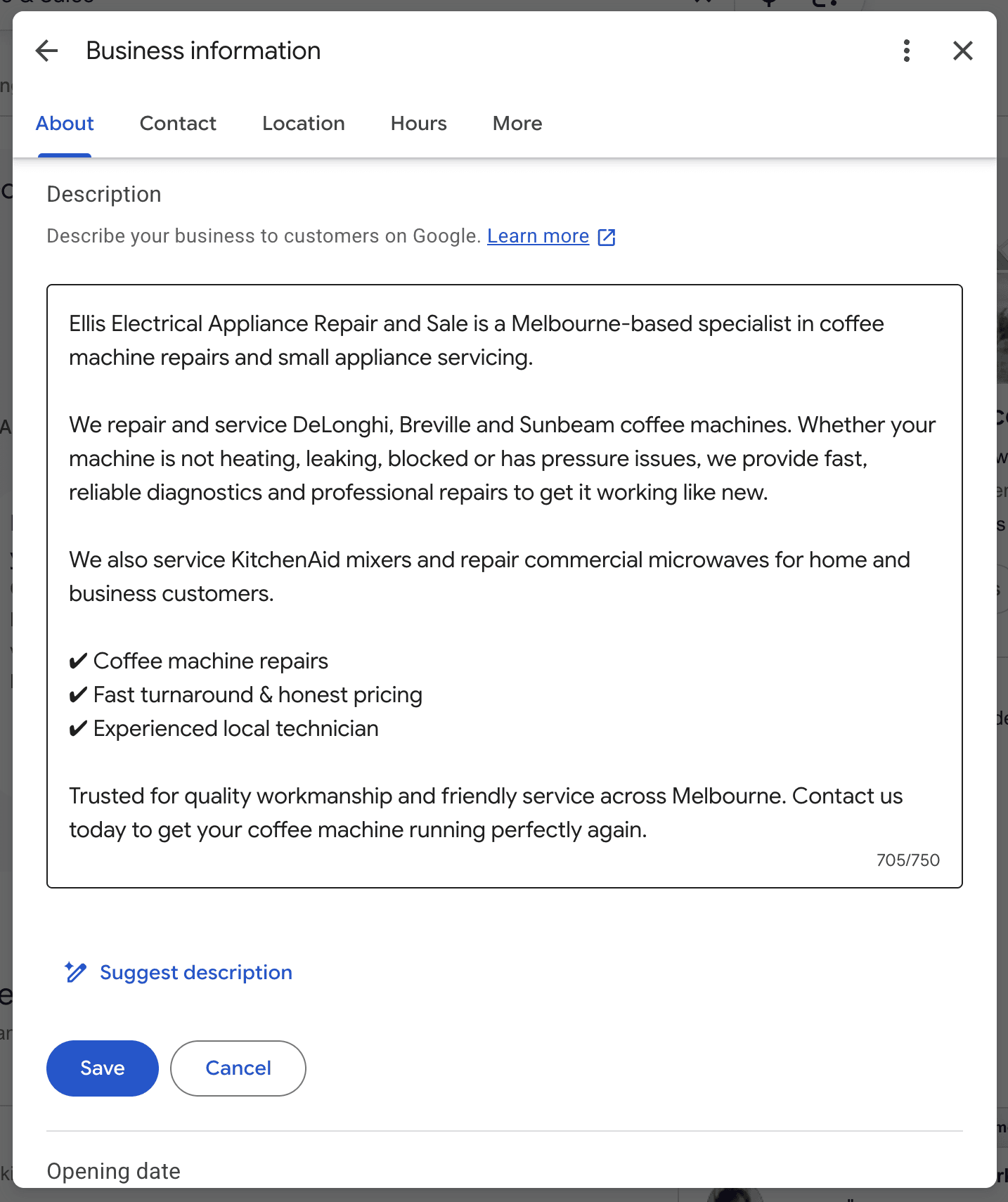
Write a description for customers, not for Google
For the description, write for a human first. Say what you do, who you serve, where you serve them and what makes you different. Keep it natural. Google does not rank you on description keywords, so there is no reason to cram them in. It reads as spam and helps nobody.
You have 750 characters. The first 250 show before the "more" link, so put the important information there.
A note on Google's own AI descriptions. Google can now auto-write a description for you. It is fine in a pinch but it is generic, and your own words will almost always sell better. We compared them here: Why Google's AI-written business descriptions are worse than yours, and when to use them anyway.
Step 3: Set your address, hours and service areas
If customers come to you, your address must be exact and verified. If you go to them, you are a service-area business, and how you set this up matters more than ever.
Storefront businesses
Enter the address exactly as it appears on your mail and your website. If your company has more than one location, each location needs its own Business Profile with its own address and phone number. Then check your map pin. Drag it to the correct spot if it is off. A wrong pin sends customers to the wrong door and tells Google the wrong distance.
Service-area businesses
Service-area businesses should hide the street address and list the areas they serve instead. List real areas you actually cover. Do not pad the list with distant cities to look bigger. Google has started quietly capping how far service areas can stretch, and overreaching can hurt you rather than help.
We wrote about that new distance limit here: The 2-hour driving rule: Google's quiet cap on GBP service areas.
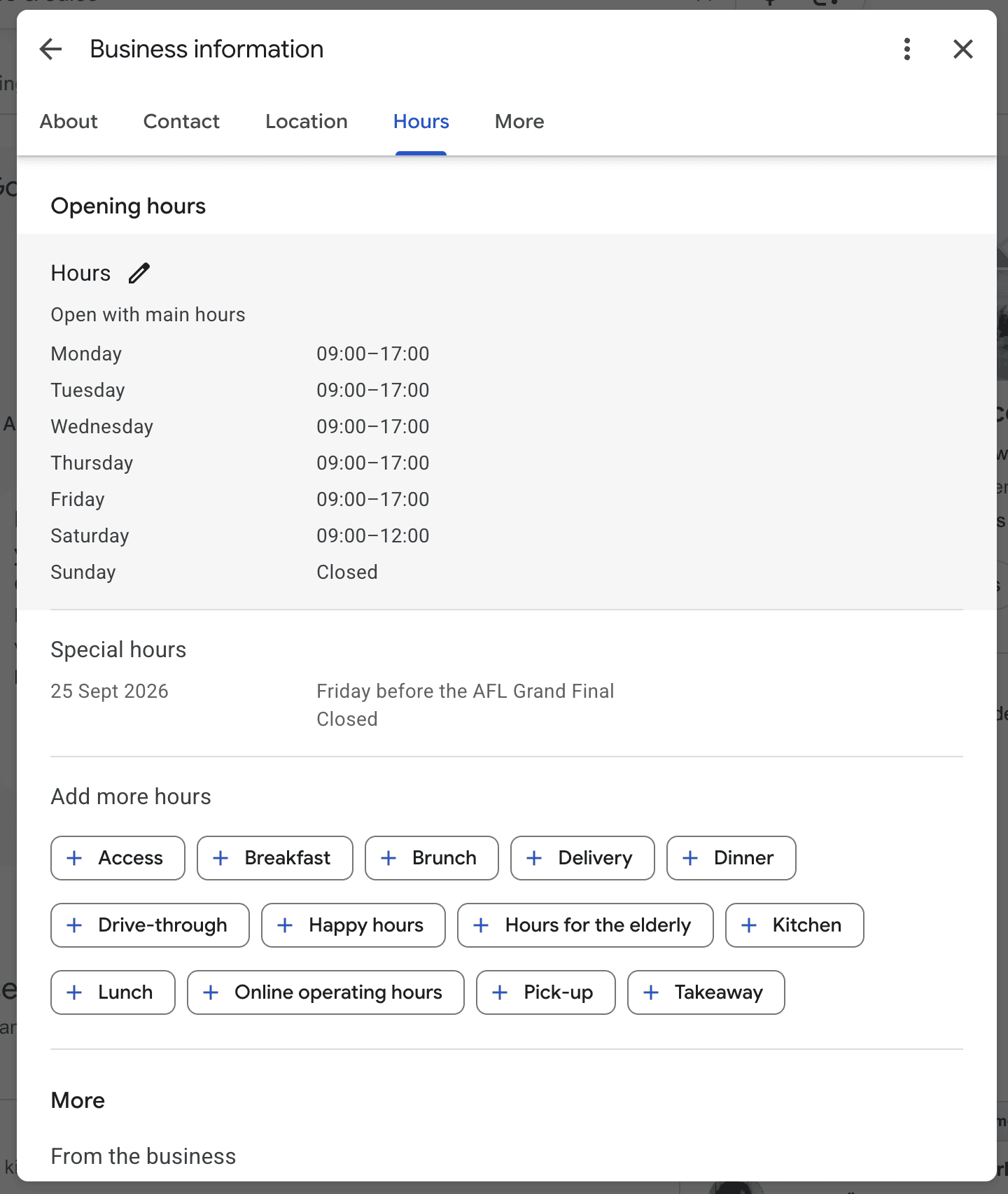
Keep your hours current
Hours are one of the first things a customer checks and one of the first things Google flags when they are wrong. Set your regular hours. Add holiday hours before every public holiday. If you offer different hours for different services, such as delivery or pickup, add those too. A listing that shows "Open" when the door is locked earns a one-star review faster than almost anything else.
Step 4: Add photos and videos that do real work
Photos are not decoration. They are a ranking and conversion signal. Profiles with strong photo sets get more clicks, more direction requests and more calls. Google has published its own data on this, and we covered the catch in it here: Businesses with photos get more direction requests.
What to upload
Add real photos of your actual business. Skip the stock images. People can tell, and so can Google. Cover every section Google offers:
- Exterior: the storefront from the street, so people recognise it when they arrive
- Interior: the rooms customers will actually sit or stand in
- Team: the people who will serve them
- Products or work: real food, real results, real before-and-after shots
- Logo and cover photo, sized to Google's photo and video guidelines
- Short videos, 30 seconds or less, of the space or the work
How often to add new photos
Keep adding them. A listing that gets fresh photos looks active and cared for. One frozen in 2023 looks abandoned. A new photo every week is ideal. Once a month is the minimum.
Two timing details worth knowing. Google changed how the photo gallery sorts, which affects what visitors see first. And freshness now matters more than it used to. We covered the sort change here: Google just changed how your GBP photo gallery sorts.

Step 5: Fill in products, services and attributes
Products and services
Every product and service you list is another way to match a search. Add them properly:
- Name each one the way a customer would search for it
- Describe it in plain language, two or three sentences
- Add a price or a price range where it makes sense
- Link each one to the matching page on your website
This is especially powerful for businesses that do not have a deep website. The services section becomes your service pages.
Attributes
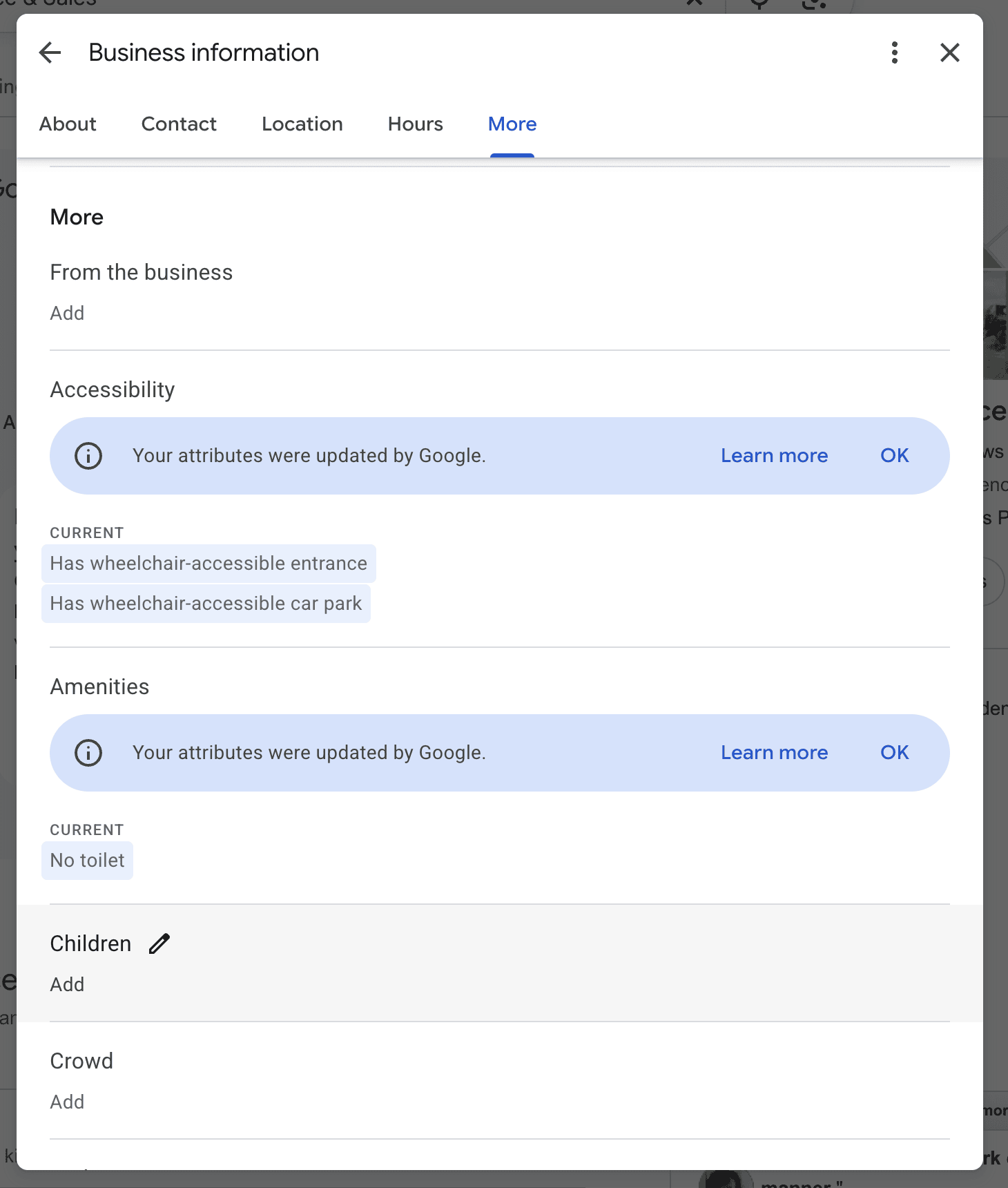
Attributes are the small checkboxes that say things like wheelchair accessible, free wifi, outdoor seating, women-owned or accepts bookings. They feel minor. They are not. With conversational search, customers now ask for very specific things, and attributes are how Google answers them.
We looked at how a few attributes suddenly became deciding factors here: The 3 GBP attributes that became deciding factors overnight, thanks to Ask Maps.
Go through the full attribute list for your category and tick everything that genuinely applies. It takes ten minutes and it widens the net.
Step 6: Build and manage Google reviews
Reviews are the heaviest lever on prominence. More reviews, better ratings and recent reviews all push you up. They also win the click once you are showing. BrightLocal's Local Consumer Review Survey finds year after year that most consumers read reviews before choosing a local business, and that recency matters almost as much as the star rating.
How to get more reviews
The simplest system that works is to ask happy customers right after you have done good work, and make it easy with a direct link. Google provides a short review link for every verified profile. Put it on your receipts, your follow-up emails, your invoices and a QR code at the counter.
A few rules that keep you safe:
- Ask every customer, not just the happy ones. Selective asking is against Google's policy.
- Never offer money or discounts for a review.
- Never buy reviews or post them from staff accounts. Google's spam systems catch this now, and the penalty is worse than the problem you were solving.
- Aim for a steady flow rather than a burst. Twenty reviews in one week looks fake. Twenty reviews over three months looks like a busy business.
How to respond to reviews
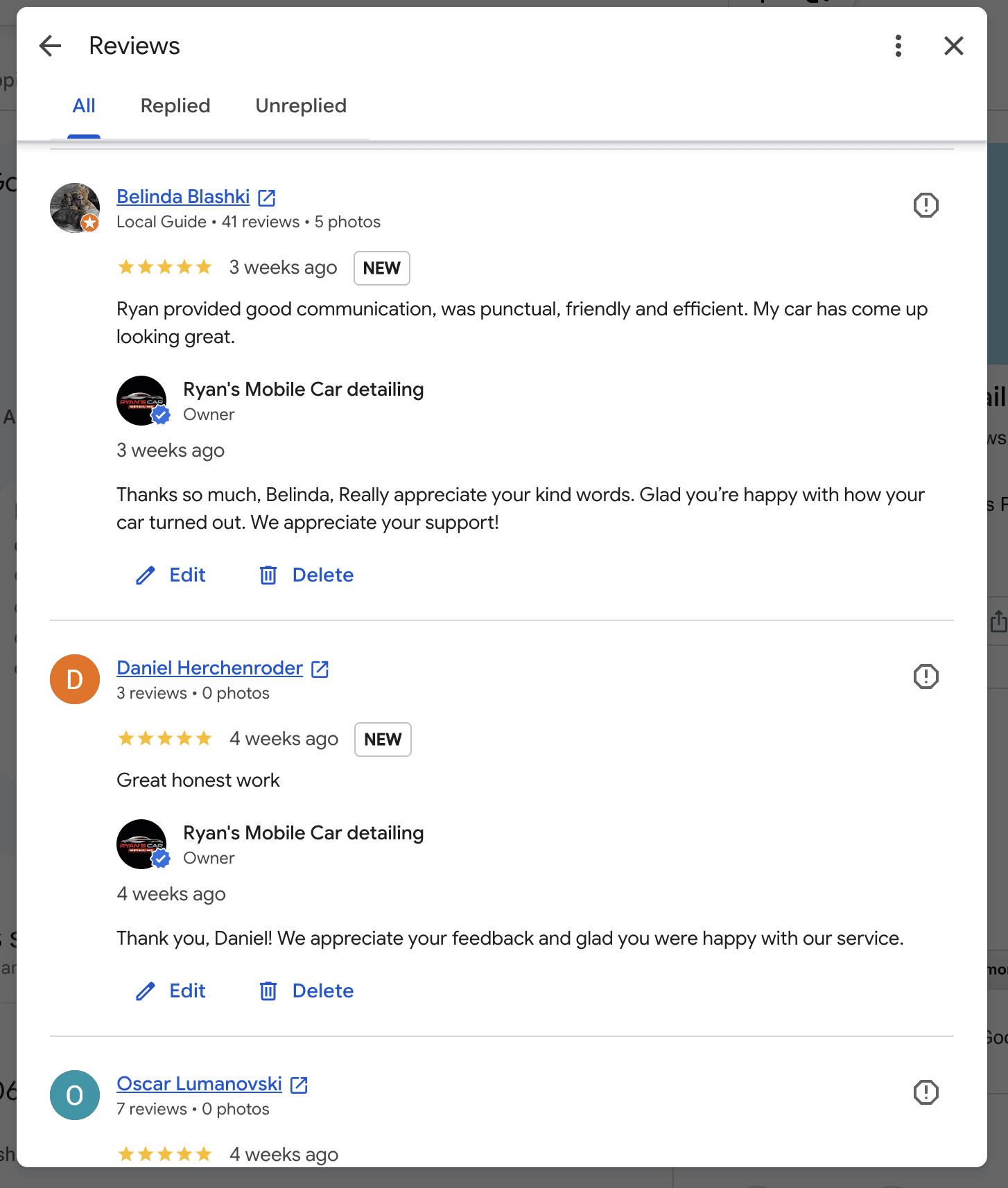
Reply to reviews. All of them, good and bad. Every reply is public, so it shapes the experience of the next customer who reads it. A calm, helpful reply to a bad review does more for trust than a wall of perfect five stars. Google recommends responding because it signals that you value your customers.
For a negative review: thank them, acknowledge the specific problem, say what you have changed, and offer to continue the conversation offline. Keep it to four sentences. Never argue in public.
On fakes, Google has rolled out stronger protection that removes a lot of spam automatically. It is not perfect. We covered what it catches and what slips through here: Google's new spam-review protection: what it catches, what slips through.
Step 7: Post updates and keep the profile active
What to post
Google Posts let you publish offers, events and news straight to your profile. They keep the listing looking active and they can drive direct action. Post when you have something real to say:
- A new product or service
- A seasonal offer with a clear end date
- An event, a class or an open day
- A completed project with a photo
- A change to hours or a holiday closure
A weekly or fortnightly rhythm is plenty. Empty posting for the sake of it is not the goal. Each post should have a photo, a short caption and a button.
Q&A has changed
Q&A has changed significantly. The old public questions-and-answers feature has been wound down, and conversational AI now answers many of the questions people used to post. That shifts the work. Instead of seeding Q&A, you now make sure the answers live in your attributes, services, description and posts, where the AI can find them.
We covered what was lost and what replaced it here: GBP Q&A is gone. What did businesses lose, and what filled the gap?
Step 8: Optimize for AI and conversational search
This is the part that is genuinely new in 2026, and it is where most guides are out of date.
How AI search reads your profile
Local search is no longer just a box and a list of links. Customers now describe what they want in plain English and let Google's AI recommend a business. Ask Maps, now live in the US, is exactly this. Someone types "quiet cafe near me with good wifi and outdoor seating" and the AI picks who fits.
The businesses that win these queries are the ones whose listings spell out the answer. Your attributes, services, categories and description are the raw material the AI reads. A vague listing cannot be recommended for a specific request. A precise one can.
Manage your profile with Gemini
Google has connected Business Profiles to Gemini. You can now manage parts of your profile in a conversational way, ask for review summaries, and make updates by chatting rather than clicking. Google is also building "Business notebooks" to keep everything about your business in one place. It is rolling out through 2026. Google announces these changes on the Google Maps blog, which is worth checking quarterly. For independent analysis of what each change means in practice, the Sterling Sky blog and Moz's local SEO resources are the two we read.
If you use Claude, the CheckLocalSEO Google Business Profile MCP connector does the same job from the other side: it lets Claude read your rankings, reviews and posts and make edits with your approval.
Get help from Google's AI support agent
Google has also added an AI support agent inside the Business Profile Help Center, currently rolling out in the US. If you get stuck on a verification step or a setting, the chat assistant in the lower right of the Help Center can walk you through it faster than digging through articles. For quick how-to questions, typing them straight into Google Search often surfaces the steps at the top of the page too.
The takeaway is simple. Freshness and precision now feed an AI that decides who gets recommended. Outdated listings are increasingly invisible to these conversational queries. We wrote about that shift here: Outdated profiles are invisible to conversational queries.
The Google Business Profile optimization checklist
Here is everything above as a checklist you can run through. Print it, or tick it off inside the Business Profile manager.
Setup
- Profile claimed with a business-owned Google account
- Business verified
- Duplicate listings removed
Information
- Most specific primary category chosen
- All relevant secondary categories added, up to 10
- Business name is the real name, no keywords
- NAP identical across website, profile, social media and every directory
- Description written for customers, important information in the first 250 characters
- Address verified, or service areas set honestly, with a correct map pin
- Regular hours and holiday hours set
Content
- Real, recent photos added across all sections
- At least one short video
- Products and services listed with clear names, descriptions and prices
- Every true attribute ticked
Engagement
- Review request link on receipts, emails and invoices
- Replying to all reviews, good and bad
- Posting updates every week or two
Tracking
- Attributes and services cover the questions customers ask AI
- Performance report checked monthly
- Google Analytics linked
- Whole profile re-checked quarterly
How to measure whether it is working
You cannot improve what you do not measure. Three places to look.
Performance reports inside the profile
Google gives you performance data inside the Business Profile manager: how many people found you, which searches they used, and how many called, asked for directions, visited your website or booked. Check it monthly and watch the trend, not the day-to-day noise. The searches report is the most useful part. It tells you which terms customers actually use, which often differ from the ones you assumed.
Link your profile to Google Analytics
There is a useful 2026 upgrade here. Google now lets you link your Business Profile directly to Google Analytics. Once linked, a new Google Business Profile section appears in your GA4 reports, and you can see calls, bookings, direction requests and website clicks alongside your website traffic in one place. To set it up, open the GA4 Admin panel, find Product Links, choose Google Business Profile, and pick the locations to link. If your website does not have Analytics yet, Google's setup guide takes about fifteen minutes. The data populates almost immediately.
Track your map-pack rankings
Your position in the local pack changes by where the searcher is standing. A rank grid checks your position from dozens of points across your service area and shows you where you are strong and where you disappear. It is the only honest way to see whether the work above is moving you. CheckLocalSEO includes a rank grid when you connect your profile, and our Managed plan tracks it weekly.
For the bigger picture, run a free local SEO audit. It scores your whole listing against this guide, finds the gaps, and tells you what to fix first. It takes about a minute and needs no signup.
How much does Google Business Profile optimization cost?
Doing it yourself costs nothing. Every field in this guide is free to edit, and Google states clearly that you cannot pay for a better local ranking.
What costs money is time. A first full optimization takes most owners an afternoon. Start today and the listing is in better shape by tonight. Keeping it optimized takes an hour or two a month for photos, posts and review replies.
If you would rather not do it yourself, there are three options:
- A local SEO agency. Typically a few hundred dollars a month on a contract, with the profile work bundled into a wider package. We compared the trade-offs in our guide to local SEO audit services.
- A listings tool. Platforms like BrightLocal, Moz Local or Yext sync your information across directories but leave the optimization to you. Our comparison pages cover the main ones.
- A done-for-you service. CheckLocalSEO's Managed plan applies every fix in this guide to your live profile, with your approval of each change, and keeps posting, replying and tracking for you. Pricing starts at $19 a month per profile with a 14-day free trial.
Whichever route you take, run the free audit first. It shows what is actually missing, so you pay for the work you need and not the work you do not.